WhatsApp Cloud API
This is the chapter where SlotDesk starts talking. Everything before it was setup you could do alone; this one has a second party, and most of the work happens on Meta's side rather than yours.
Two things need to be true before you start, and neither is optional:
- Cron and the queue worker are running. Inbound messages are queued, not handled inline. Connect WhatsApp without a worker and the webhook will verify perfectly, messages will arrive, and nothing will happen. That looks exactly like a broken connection and it is not one.
- Your install is reachable over HTTPS at a real public domain, with a valid certificate. Meta will not deliver to anything else. That is the App URL from Install.
What you need from Meta
| What it is | |
|---|---|
| A Meta app | Created at developers.facebook.com, with the WhatsApp product added |
| A WhatsApp Business Account | The WABA the number lives under |
| A phone number | One that can receive an SMS or call to verify |
| A System User access token | Permanent, not the temporary test token |
The number cannot already be in use on the WhatsApp consumer app or WhatsApp Business app. If it is, delete that account first and wait for it to clear. This is the single most common reason a number will not register, and no setting in SlotDesk can work around it.
The temporary token Meta shows you in the dashboard expires in 24 hours. It is fine for a first test
and will strand you the next day, so create a System User token with the
whatsapp_business_management and whatsapp_business_messaging permissions and use that.
Two ways to connect
If whoever built this install configured Facebook Embedded Signup, the wizard offers a one-click "Continue with Facebook" flow that fills everything in for you.
If it did not, the wizard says so plainly:
One-click signup is not configured on this install. Enter the details manually below.
That is not an error. Manual entry is the normal path for a self-hosted install and the rest of this chapter assumes it.
Step 1 of 3 · Connect
Open WhatsApp → Setup wizard in your business panel.
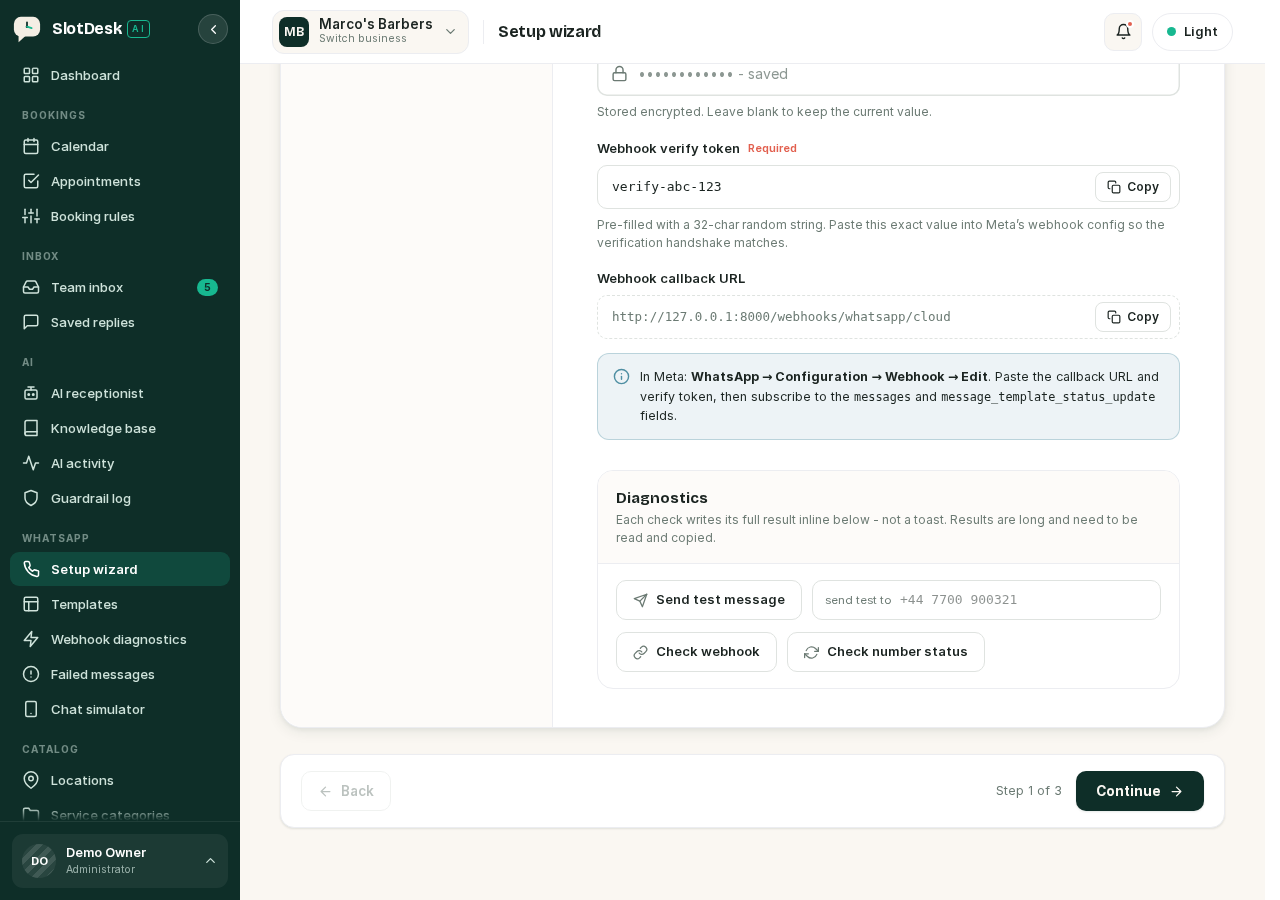 The Connect step, with the verify token, the callback URL and the three self-tests.
| Field | Where it comes from |
|---|---|
| WhatsApp Business Account ID | Meta → WhatsApp → API Setup. The WABA the number belongs to |
| Phone number ID | Same screen. This is not the phone number itself |
| Display phone number | The number as customers see it |
| Access token | Your System User token. Stored encrypted; leave blank when editing to keep the current one |
| App secret | Meta app → Settings → Basic. Used to verify that inbound calls really came from Meta |
| Webhook verify token | Pre-filled with a random 32-character string. You do not invent this |
Two values on this screen have Copy buttons, and both are copied out of SlotDesk into Meta:
- Webhook verify token, the pre-filled random string
- Webhook callback URL, which ends
/webhooks/whatsapp/cloudand is built from your App URL
Save before you go to Meta. The verify token has to exist in the database before Meta can check it.
Point Meta at the webhook
In Meta: WhatsApp → Configuration → Webhook → Edit.
- Paste the callback URL.
- Paste the verify token, exactly as copied. No trimming, no retyping.
- Save. Meta calls your URL immediately to verify it.
- Subscribe to the
messagesandmessage_template_status_updatefields.
Step 4 is the one people miss. Verifying the URL only proves Meta can reach you. Without the field subscriptions, Meta never sends anything, and the wizard's webhook check will still pass.
What the handshake actually does
Meta sends a GET to your callback URL carrying hub.mode, hub.verify_token and
hub.challenge. SlotDesk looks for a connected account whose stored verify token matches. If it
finds one and the mode is subscribe, it echoes the challenge back as plain text. Otherwise it
returns 403 Forbidden.
So a failed verification in Meta means one of exactly two things: Meta could not reach the URL at all, or the token it sent does not match the one saved in SlotDesk.
The three self-tests
The Connect step has a Diagnostics panel. Each check writes its full result inline underneath rather than as a toast, because the results are long.
Check webhook calls your own callback URL and confirms it echoes the challenge. It reports the HTTP status it got back, and reminds you to subscribe to both fields.
Check number status reads the number live from Meta. This is the one that needs
whatsapp_business_management on the token; if the permission is missing, this check is where you
find out.
Send test message sends to a number you type in. Its behaviour depends on the 24-hour window:
- If that person has messaged you in the last 24 hours, it sends free-form text.
- If not, it sends Meta's
hello_worldtemplate instead, and says so.
If your Meta account is still unverified, the recipient has to be on your test number allow list or Meta will reject it.
Step 2 · Verify the number
A readout of what Meta thinks of your number. Two kinds of finding, and the difference matters:
Hard problems stop you sending.
- The number is not verified. Verify it in WhatsApp Manager.
- Not registered on the Cloud API. Run registration in WhatsApp Manager, with your 2-step PIN.
Soft notes do not.
- The display name is pending review. Meta reviews it separately. Until it is approved customers may see the number instead of your business name. You can send the whole time.
- Quality rating. If Meta has rated the number low, it may be limiting your volume.
"Verified and registered on the Cloud API" is the state you want, and it means you can send now.
Step 3 · Templates
The last step introduces message templates. They are their own subject, including when you need one and when you do not, and the next chapter covers them.
How a message actually reaches you
Every failure below maps onto one step of this.
- A customer messages your number. Meta sends a
POSTto your callback URL. - SlotDesk resolves which connected account it is for, from the phone number ID in the payload.
- It verifies the
X-Hub-Signature-256header against your app secret. - It writes a webhook log row, then queues the work on the
webhooksqueue. - The queue worker picks it up and the AI receptionist replies.
Three deliberate behaviours in there:
- An event for a number SlotDesk does not know returns 200, marked ignored. Returning an error would make Meta retry it forever.
- A bad signature returns 401 and is logged with the signature marked invalid. Nothing is processed.
- Everything is logged before it is queued, which is what makes the next screen useful.
Webhook diagnostics
WhatsApp → Webhook diagnostics shows the last 20 deliveries Meta made, newest first.
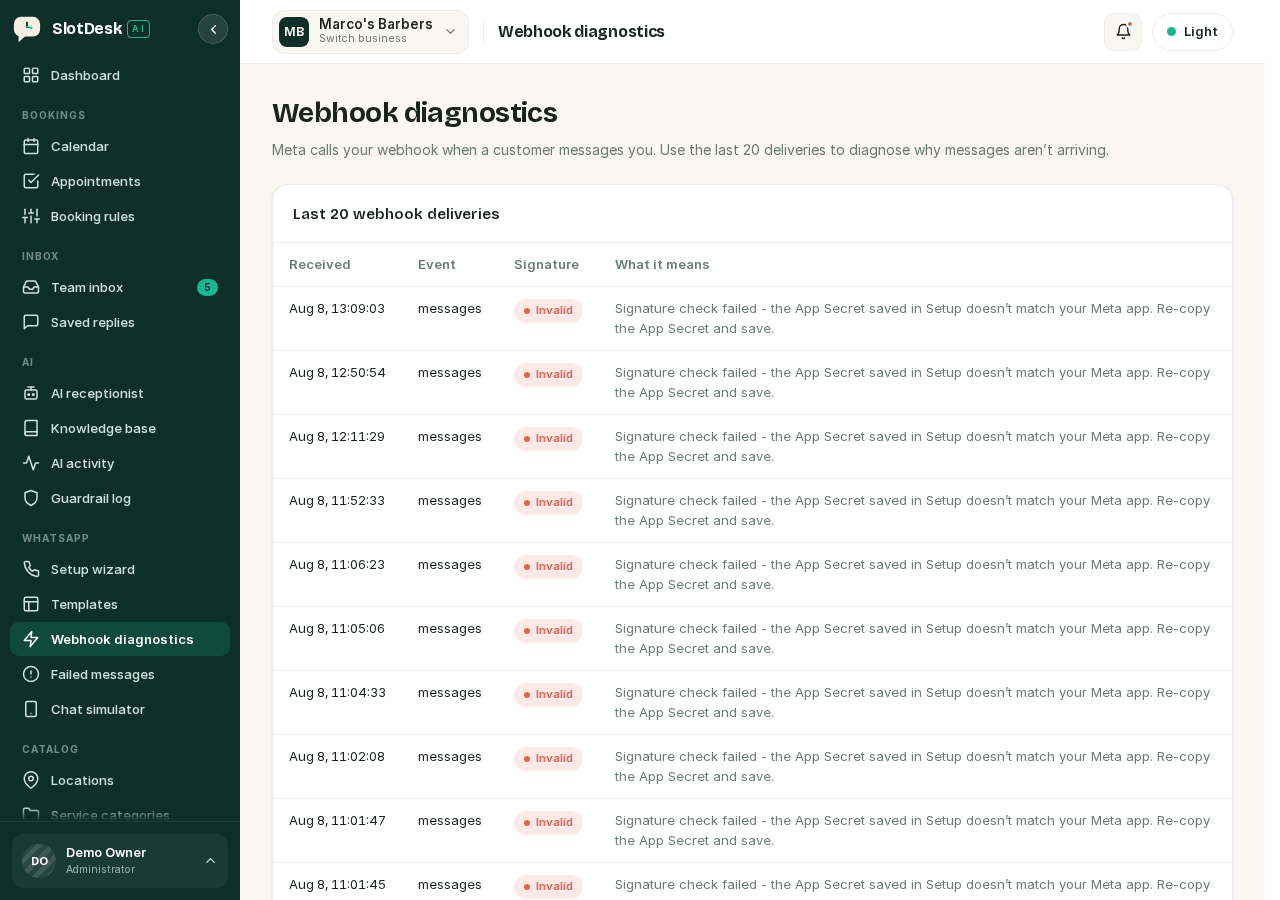 Webhook diagnostics, showing signature status and what each delivery means.
| Column | Read it as |
|---|---|
| Received | When Meta called |
| Event | What kind of update it was |
| Signature | Valid or Invalid |
| What it means | Plain-language state of that delivery |
This screen answers the question "is it Meta or is it me" in one look:
- No rows at all. Meta is not calling you. The subscription or the callback URL is wrong.
- Rows with Invalid signatures. Meta is reaching you and your app secret does not match.
- Rows saying "verified and queued, but not processed yet". Everything about WhatsApp is working. Your queue worker is not running. Go back to Cron and the queue worker.
If something went wrong
Meta says the callback URL or verify token could not be validated. Either it cannot reach you or the token does not match. Confirm your App URL is the real public HTTPS address with no trailing slash, open the callback URL in a browser yourself, and re-copy the verify token rather than retyping it.
The webhook verifies but no messages ever arrive.
The field subscriptions. Go back to Meta and subscribe to messages and
message_template_status_update.
Diagnostics shows deliveries with an Invalid signature. The app secret in SlotDesk is not the one from the Meta app you are actually using. Copy it again from Meta app → Settings → Basic. This is easy to get wrong when you have more than one app.
Messages arrive, are Valid, and nothing replies. The queue worker. This is the failure the whole previous chapter exists to prevent.
Everything worked yesterday and stopped today. The access token expired. You used the temporary one. Replace it with a permanent System User token.
Check number status fails with a permission error.
The token is missing whatsapp_business_management. Regenerate it with that scope.
You cannot send free-form text to a customer. They have not messaged you in the last 24 hours. That is Meta's rule, not SlotDesk's, and it is what templates are for.
Previous: First login and the two panels Next: Templates and the 24-hour window, when you need an approved template and when you do not.