Calendar and appointments
The diary. Every booking for the business on one time grid, colour-coded by status, with a badge on anything the receptionist booked over WhatsApp.
Bookings → Calendar. Everyone with access to the business can open it.
It shows, it does not change
The Calendar is a viewer, and the screen invites the opposite conclusion. Nothing on the grid can be clicked, dragged or edited. Blocks even take a pointer cursor when you hover them, and nothing happens when you click. Every change to a booking happens on Appointments.
| You want to | Go to |
|---|---|
| See who is in, and when | Calendar |
| Open, edit, reschedule or cancel a booking | Appointments |
| Add a booking by hand | New booking, top right, which opens the Appointments form |
Week view
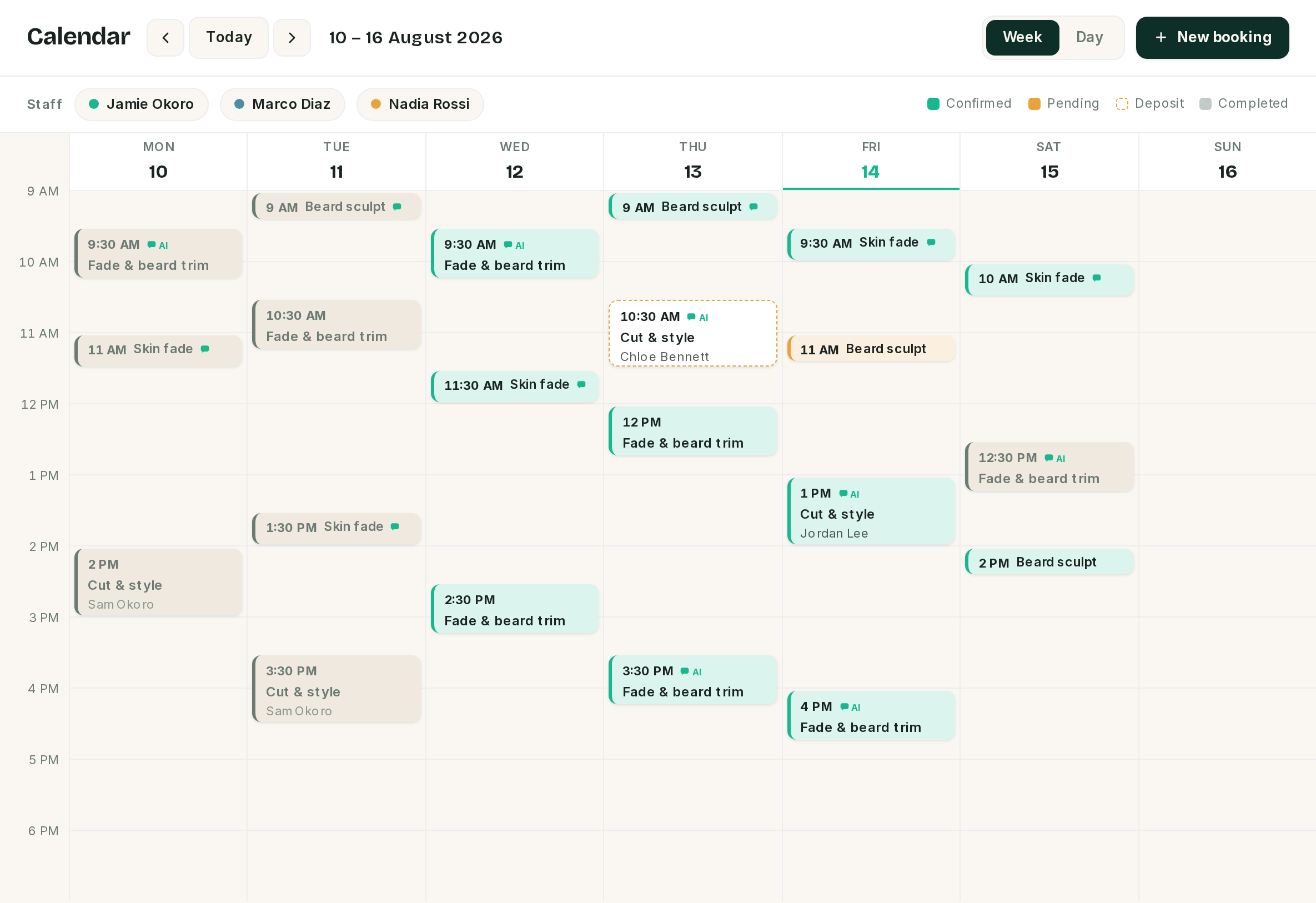 Today's column is marked twice, by the leaf date and the leaf underline.
The default. Always Monday to Sunday, whichever day you arrive on, and the week cannot be set to start on Sunday.
If today falls inside the week on screen, its column header carries a leaf underline and its date turns leaf green. If you have navigated away from this week, no column is marked.
The toolbar
| Control | What it does |
|---|---|
| Back and forward | One step. Seven days in week view, one day in day view. |
| Today | Back to the present. The current week in week view, today in day view. |
| Date range | The period on screen. It follows your interface language. |
| Week and Day | Switches the grid. Switching to Week snaps to the Monday of the day you were on. |
| New booking | Opens the Appointments form. |
Day view
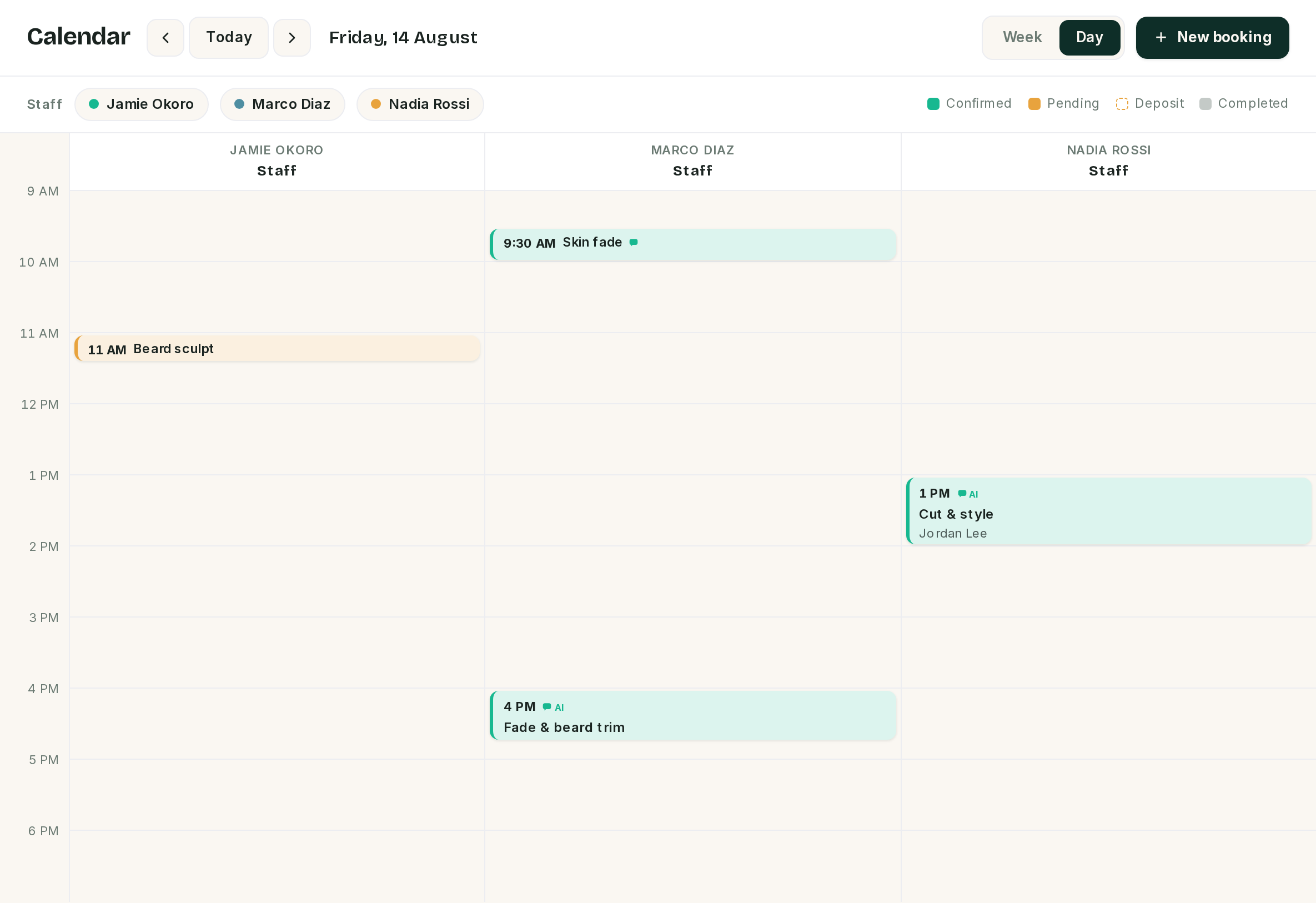 The subtitle under each name is that staff member's role.
Day view swaps the seven days for one column per active staff member, which is the view for "who is free at three".
⚠️ Day view only draws bookings that have a staff member assigned, and only for staff who are active. A booking with nobody assigned, or one assigned to a staff member you have since deactivated, has no column to sit in and does not appear at all. It is still there in week view and on Appointments. If a booking vanishes when you switch to Day, that is why.
The grid
One row per hour, hour labels down the left.
A booking is positioned by its start time and sized by its duration, so a half hour service is half the height of an hour. Anything shorter than fifteen minutes is drawn at the fifteen minute height so it stays readable.
⚠️ The grid is fixed at 9 AM to 6 PM and does not read your opening hours. A booking that starts before nine or ends after six is created normally, counts everywhere else, and is simply not drawn on this screen. If you trade evenings, the Calendar is not a complete picture of your day and Appointments is. There is no setting for this in this release.
Reading a booking
 The badge means this one was booked by the receptionist over WhatsApp.
- Start time, in figures that line up down the column.
- The AI badge, a small WhatsApp mark and
AI, appears only when the receptionist made the booking. Bookings taken by your team or through the public booking page carry no badge, which makes the badge a fair count of what the receptionist is earning you. - Service name, shortened with an ellipsis if the column is narrow.
- Customer name, or Walk-in when no customer record is attached.
Bookings of thirty minutes or less are drawn on a single line: time, service, badge. There is no room for the customer name at that height, so it is left out rather than half shown. A block with no name on it is short, not broken.
Status colours
The legend sits at the right of the strip under the toolbar, on both views.
| Appearance | Status | Means |
|---|---|---|
| Green tint | Confirmed | The slot is locked in, and any deposit has been paid. |
| Amber tint | Pending | Requested, not yet confirmed. Still holds the slot, so nobody else can take it. |
| Dashed amber outline | Deposit pending | Held while the customer pays. The dashed edge reads as provisional on purpose. |
| Muted sand | Completed | Done, and in the past. Faded so it sits behind live bookings. |
⚠️ Cancelled and no-show bookings look exactly like completed ones. They stay on the grid in the same muted sand and the legend has no entry for either. A muted block in the middle of tomorrow is therefore a cancellation, not a completed appointment, and the Calendar will not tell you which. Open it in Appointments to find out.
The staff pills filter the grid
The pills on the left of the legend strip list your active staff, each with a colour dot, sorted by name. Colours cycle through leaf, sky, amber and coral if you have more than four.
Click one and the grid shows only that person's bookings. The pill stays lit while the filter is on. Click the lit pill again to clear it and get everyone back. Only one person can be selected at a time, so this narrows to a single diary rather than building a subset.
Booking by hand
New booking opens the Appointments form. Nothing is carried across from the Calendar: not the day you were looking at, not the slot you were pointing at. Set the date and time yourself.
Two things about bookings typed in by hand, both covered in Booking rules, and both repeated here because this button is where you will meet them:
- Clashes are refused. The form checks the slot against the buffered footprint and will not save over an existing booking. It names the one it collides with. To double-book on purpose, tick Book anyway.
- The usual messages go out. Confirmation and reminders are scheduled exactly as they are for a booking from the booking page or the receptionist. See Notifications and reminders.
Timezones
Appointments are stored in UTC and drawn in the business's timezone, set on the business record. The hour gutter, the block positions, every start time on the grid and which day a late booking falls on all follow it. A business with no timezone set falls back to UTC.
Switching business at the top of the panel reloads the Calendar in that business's timezone.
If something went wrong
A booking I just made is not on the Calendar. In order: check the date range in the toolbar, check the time is inside 9 AM to 6 PM, check you are in the right business, and if you are in Day view check the booking has an active staff member assigned. Week view shows more than Day view does.
A booking disappeared when I switched to Day view. It has no staff member assigned, or the one it is assigned to has been deactivated.
The times are out by a few hours. The business timezone is wrong. Fix it on the business record and every screen corrects at once. Nothing needs re-entering: the times themselves are stored in UTC and were always right.
Clicking a booking opens it. Blocks are links to that appointment's page, so you can go straight from the grid to the record.
A staff pill is stuck on. The filter is still applied. Click the lit pill a second time to clear it.
A block in the future is greyed out. It is cancelled or a no-show. They share the completed styling.
A block shows no customer name. Either the booking is thirty minutes or shorter, where the name is left out by design, or it has no customer record and reads Walk-in.
Evening bookings are missing. The grid stops at 6 PM. They exist, and Appointments will show them.
Previous: Notifications and reminders Next: The team inbox, live conversations and taking over from the AI.