Notifications and reminders
What SlotDesk sends on its own, when it sends it, and the two screens that control it.
All of it depends on the queue worker and the cron entry. If those are not running, everything in this chapter is configuration that never fires. See Cron and the queue worker.
The five notifications, and which need a template first
The template list offers five kinds. Two send on their own. The other three send only once you have written and activated a template for them, because they have no default wording to fall back on.
| Notification | When it goes out | Needs an active template |
|---|---|---|
| Confirmation | Immediately, when a booking is made | No, there is a default |
| Reminder | Once for each reminder offset you have set | No, there is a default |
| Cancellation | Immediately, when the appointment is cancelled | Yes |
| No-show | Immediately, when the appointment is marked a no-show | Yes |
| Follow-up | 24 hours after the appointment ends | Yes |
The gate is per channel as well as per kind: the notification goes out on whichever channels you have an active template on, and on none if you have activated nothing.
This is why the last three are silent on a fresh install, and it is deliberate. Turning them on for everybody would start sending three new kinds of message, at real per-message cost, to every customer of an existing install the moment it was upgraded. Write the template, tick active, and it sends.
Every scheduled notification goes out over WhatsApp. The channel selector offers Email, and an email template can be saved and marked active, but nothing ever schedules an email notification. Email in this product is for password resets and handoff alerts to your own team, not for customers.
Which bookings get notifications at all
| How the booking was made | Confirmation and reminders |
|---|---|
| The public booking page | Yes |
| The AI receptionist | Yes |
| Typed into the panel by hand | Yes |
Every route into the diary schedules the same messages, so a booking your team types in is treated exactly like one the customer made themselves.
Two more lifecycle rules:
- Rescheduling re-sends. Moving an appointment clears its pending notifications and schedules a fresh confirmation immediately, plus new reminders measured from the new time.
- Cancelling clears the reminders first. Pending reminders are cancelled so they cannot fire for an appointment that is no longer happening, and then the cancellation notice goes out if you have an active template for it.
Reminder settings
Notifications → Reminder settings, Owner only. Each row is an amount and a unit, and each row produces one reminder that many minutes before the appointment starts.
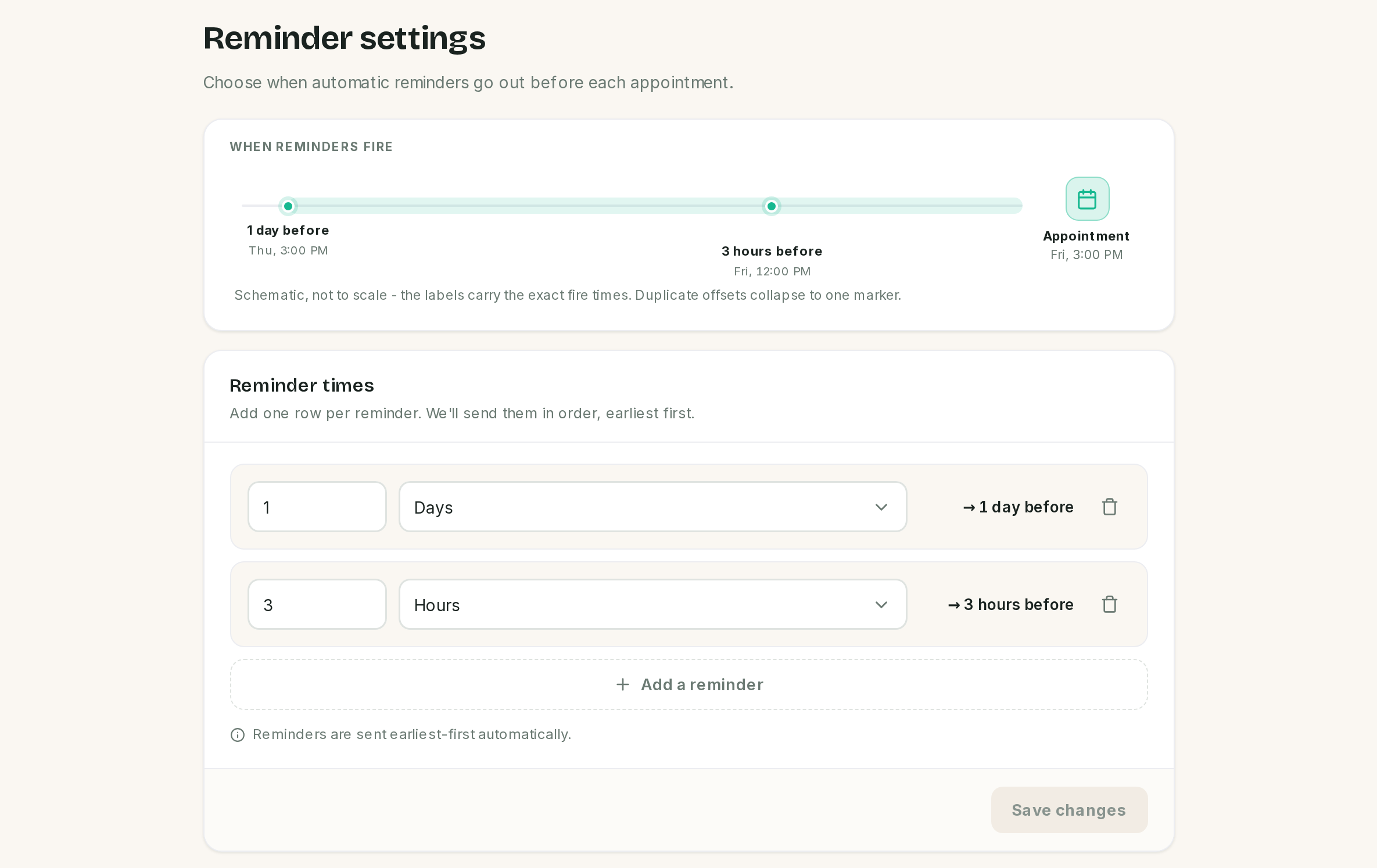 The preview is anchored to a sample Friday at 15:00, and says so. It is not a real booking.
| Rule | Detail |
|---|---|
| Default | 1 day and 2 hours before, until you change it |
| Minimum | 1 of whichever unit you pick |
| Maximum | Two weeks. Further out is refused |
| Duplicates | Collapsed. Two rows meaning the same offset become one reminder |
| Order | Stored earliest first, whatever order you type them in |
Only reminders still in the future are scheduled. A customer booking a slot two hours from now never gets the one-day reminder, because that moment has already passed. Nothing is queued and nothing fails; the reminder simply does not exist for that booking.
The preview strip is anchored to a sample appointment on the next Friday at 15:00 in your business timezone. It exists to sanity-check the offsets, not to describe a real booking.
Notification templates
Notifications → Notification templates, Admin or Owner. One template per notification per channel, so there is exactly one WhatsApp reminder for the business.
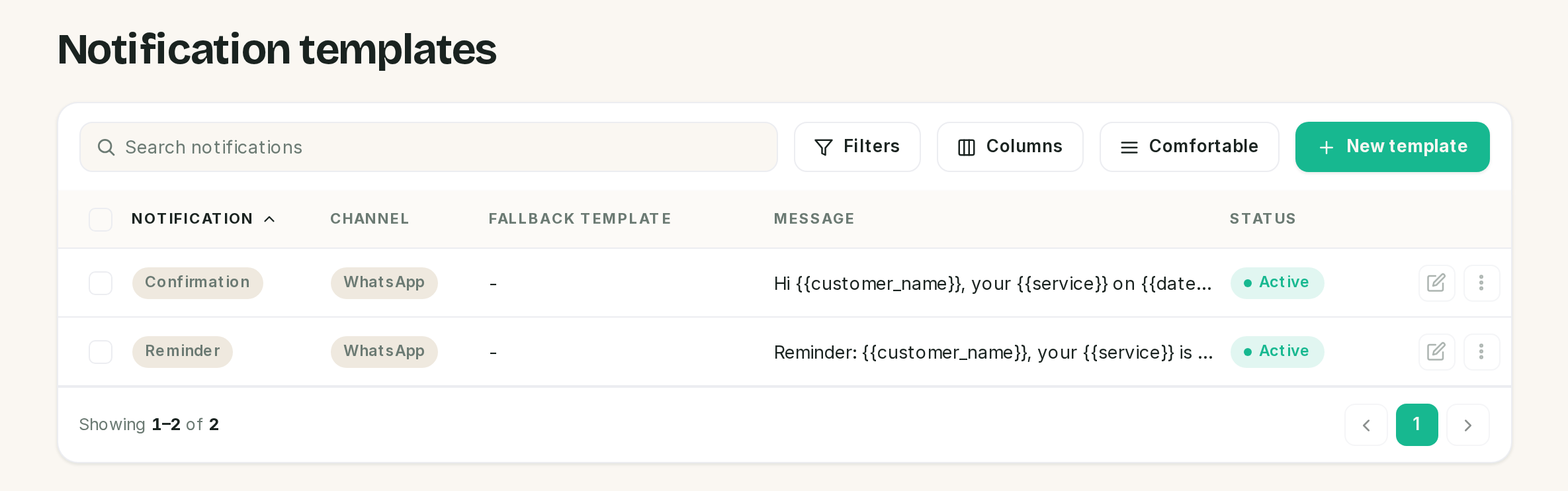 A dash in Fallback template is the setting that stops reminders. The next section is about that
column.
A dash in Fallback template is the setting that stops reminders. The next section is about that
column.
An empty list is not a problem. A fresh install has no templates at all, and SlotDesk sends built-in default text for confirmations and reminders. The same happens if a template exists but is switched inactive. You write a template to change the wording, not to turn sending on.
Placeholders
These are substituted when the message is sent, not when you save it.
| Placeholder | Becomes |
|---|---|
{{customer_name}} |
The customer's name, or there if you do not have one |
{{service}} |
The service name |
{{date}} |
The date, in the appointment's own timezone |
{{time}} |
The start time, in the appointment's own timezone |
{{staff}} |
The staff member's name |
{{location}} |
The location name, or nothing at all if the service has no location |
{{manage_link}} |
A signed link to view, reschedule or cancel, valid for 7 days |
Write around the two that can come out empty. "Your appointment at {{location}}" reads badly as "Your appointment at " when the service has no location set.
The 24-hour window is what actually breaks reminders
This is a Meta rule rather than a SlotDesk one.
Free-form WhatsApp messages can only be sent within 24 hours of the customer's last message. Outside that window, only an approved template can be delivered. See Templates and the 24-hour window.
Now look at what a reminder usually is. Somebody books on Monday for an appointment on Friday. The day-before reminder fires on Thursday, three days after they last typed anything. The window is shut, and the reminder is not a free-form message any more.
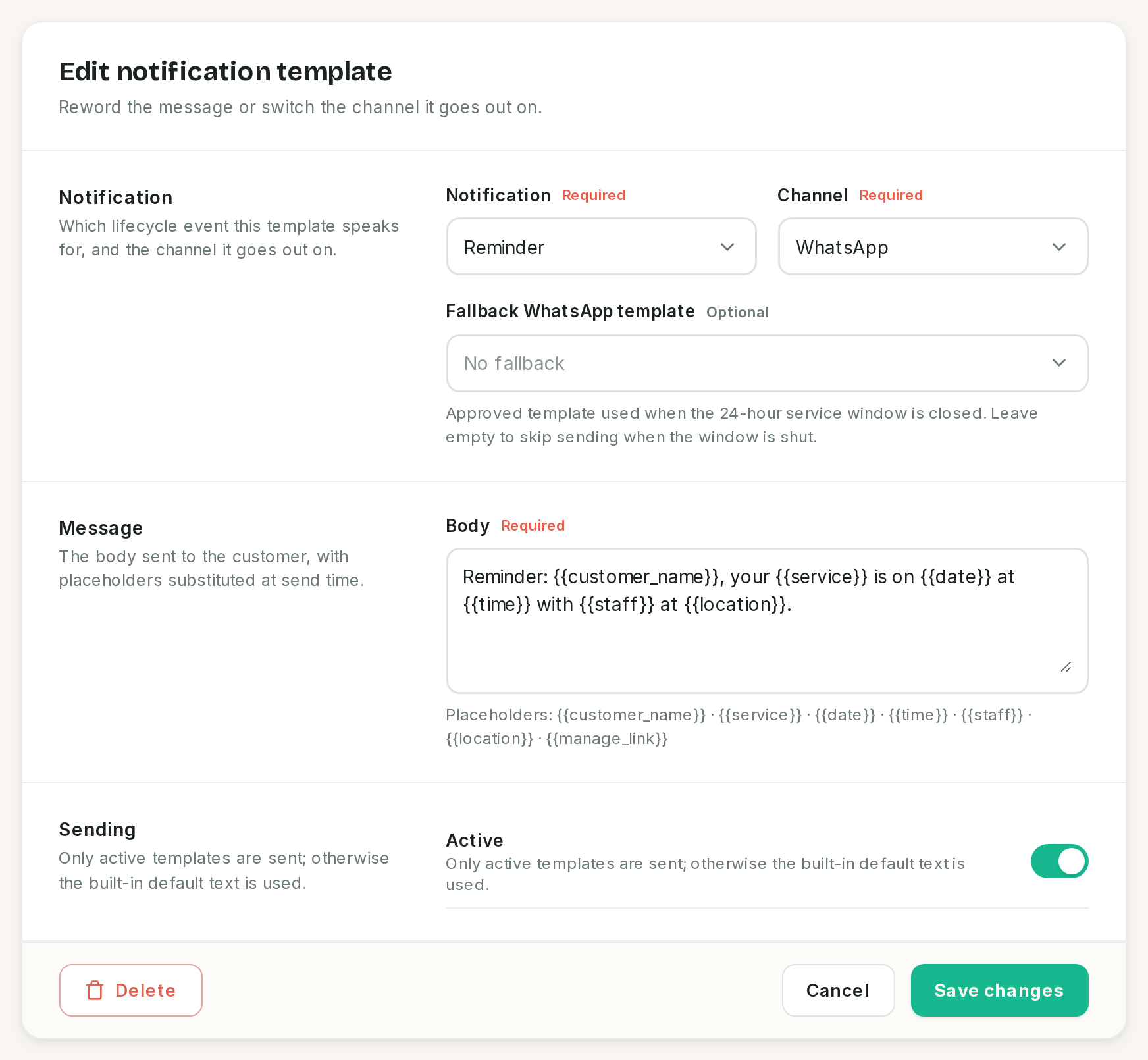 This is the state a fresh install is in. The help text under the field is the whole problem in one
sentence.
This is the state a fresh install is in. The help text under the field is the whole problem in one
sentence.
So, on the reminder template:
- Set Fallback WhatsApp template to an approved template.
- Without one, the send fails. The screen's help text says it will "skip sending", but what actually happens is a failed send recorded against the appointment, with the reason "Outside the 24h window and no approved template mapped."
Confirmations are usually fine, because a customer who just booked through the receptionist messaged seconds ago. It is the reminders that need the template, which is the opposite of where most people put their attention.
Opt-out is honoured before anything else
If a customer has opted out, the notification is not sent, and is recorded as skipped with the reason rather than as a failure. Nothing you can configure overrides that, which is the correct behaviour and keeps your number out of trouble.
Every attempt is written down
Sent, skipped or failed, each notification records the outcome and a reason against the appointment. When a customer says they were never told, that log answers whether SlotDesk tried, and what happened when it did.
If something went wrong
Nothing sends at all, ever. The queue worker. It is the single most common cause, and everything else in this chapter is downstream of it.
Confirmations arrive and reminders do not. The 24-hour window. Map an approved template on the reminder template.
Nothing is sent for bookings your team typed in. Manual bookings schedule no notifications in this release.
A customer got two identical reminders. Not from duplicate rows, which are collapsed. Check whether the appointment was rescheduled, which rebuilds the schedule.
A reminder never fired for a same-day booking. The offset was already in the past when the booking was made. Add a shorter offset if you want same-day cover.
The message arrived with a blank in it.
A placeholder resolved to nothing, usually {{location}} on a service with no location.
The follow-up or no-show message never arrives. The template is written but not active. Those three kinds send only on the channels you have activated a template on, and stay silent otherwise.
A customer says they never got a cancellation message. Same cause: activate a cancellation template. Without one, SlotDesk cancels the reminders and stays quiet.
Previous: Booking rules Next: Calendar and appointments, the screens you will live in day to day.