Staff and team members
Two screens sit under Team and they sound like the same thing. They are not.
A staff member is someone customers book. A team member is someone who signs in. One person is often both, and SlotDesk still keeps two records for them, because plenty of people are only one.
Which record you need
| Staff | Team members | |
|---|---|---|
| What it is | A bookable person in the diary | A login account with a role in this business |
| Where | Team → Staff | Team → Team members |
| Who can edit it | Admin and Owner | Owner only |
| Needed to take bookings | Yes | No |
| Can sign in | Only if you link an account | Yes |
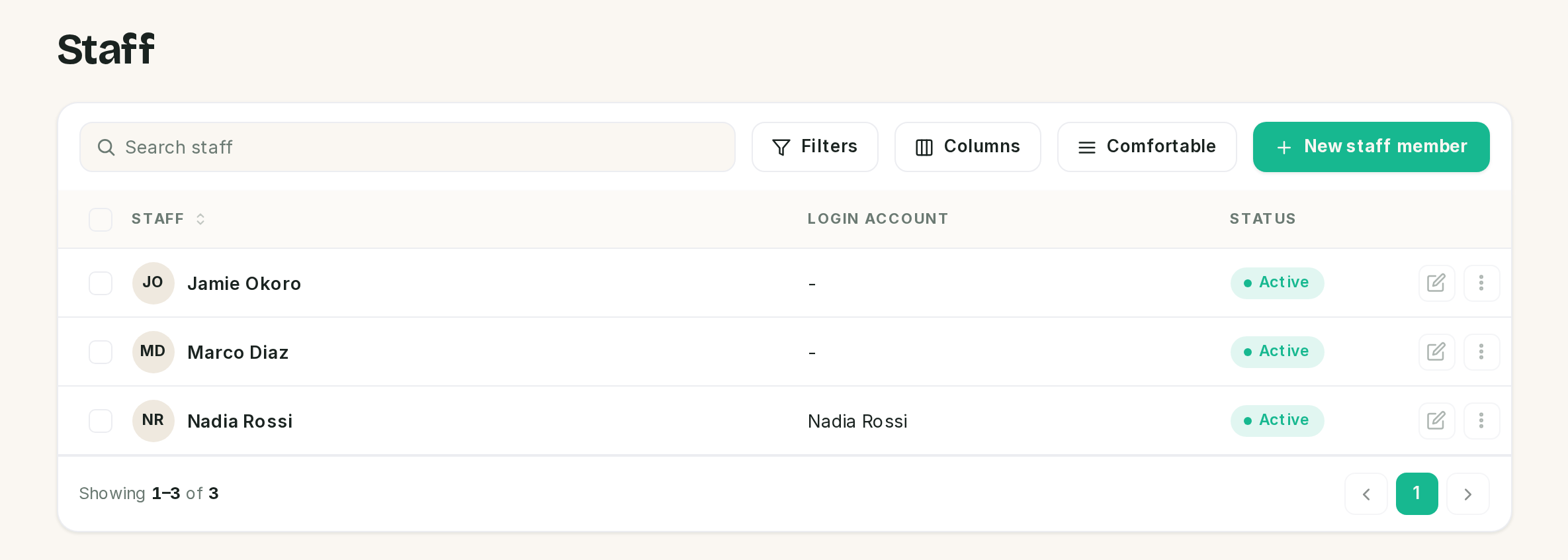 Two of these three have no login and are still fully bookable.
Both of these are normal and neither is a mistake:
- A staff member with no login. The chair that gets booked, worked by someone who never opens the app. Bookings, hours and reminders all work without an account.
- A team member with no staff record. A receptionist who lives in the inbox and is never booked.
Linking is optional, and it is a label rather than a permission. Attaching an account to a staff record does not grant that person anything; what they can reach comes from their role, further down this page.
The staff record
Team → Staff → New staff member. Four blocks.
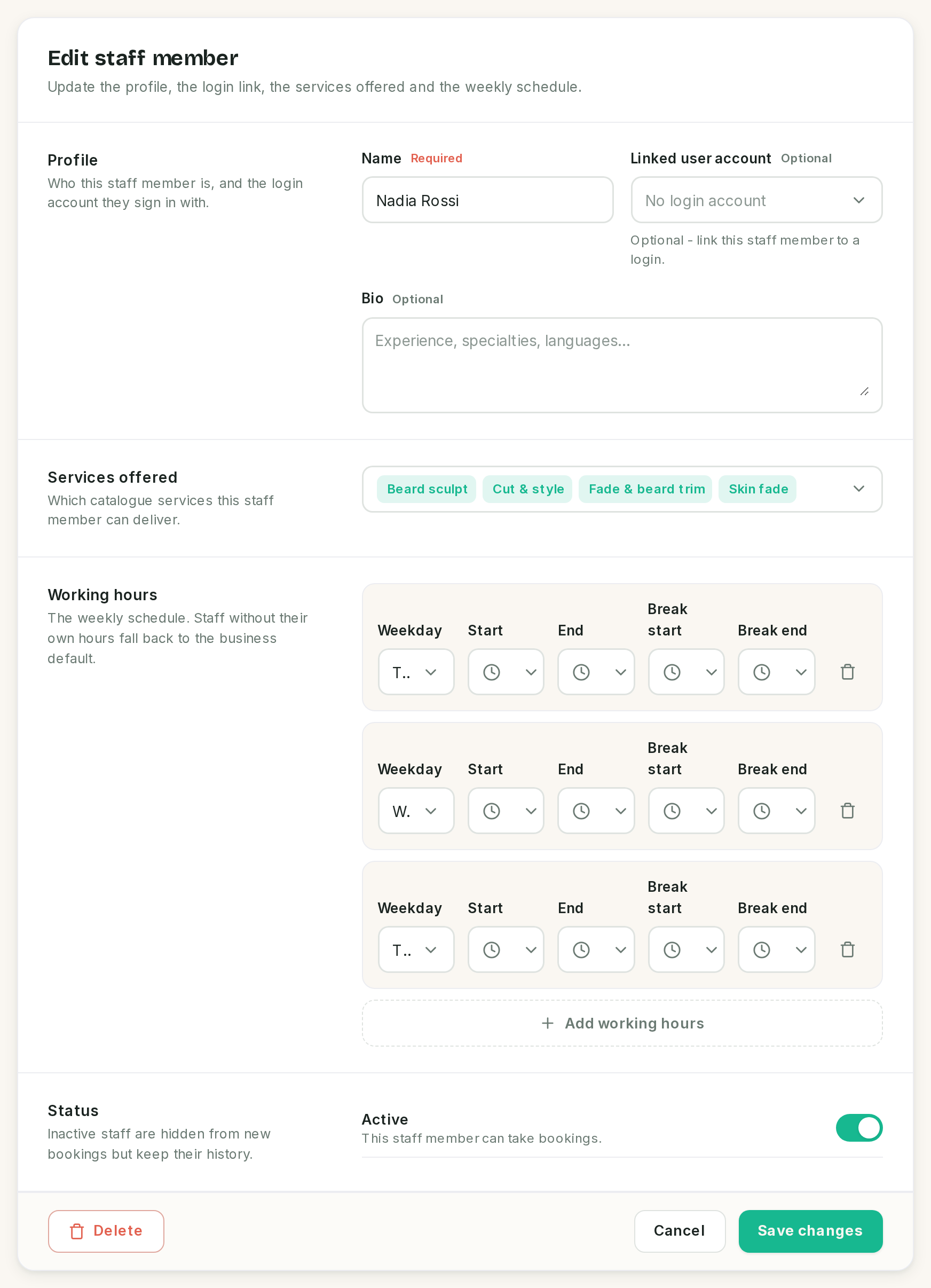 The working-hours rows in this figure do hold times. This release does not show them, which is
covered below.
The working-hours rows in this figure do hold times. This release does not show them, which is
covered below.
Profile
| Field | Notes |
|---|---|
| Name | Required. What the receptionist will say out loud, so use the name customers use |
| Linked user account | Optional. The login this person signs in with, if they have one |
| Bio | Optional. Shown under the name in the staff list |
Two things this block does not do. There is no photo upload, despite the staff list being laid out for one. And the bio is never given to the receptionist, so specialisms a customer might ask about belong in the knowledge base, not here.
On an install running more than one business, the Linked user account list is not filtered to the current business, so it shows every account on the install. Pick carefully, and treat it as a list of logins rather than a list of your colleagues.
Services offered
The multi-select that decides what this person can be booked for, and the other half of the link the catalog chapter ends on.
This is the assignment that makes a service bookable. A service with nobody offering it produces no slots at all. If you have just added a service, this is the screen you finish it on.
Working hours
Covered in full below, because it is the part that decides when anybody can book.
Status
The Active toggle. An inactive staff member is hidden from new bookings and keeps every appointment they already have.
Working hours decide everything, and they have one trap
Hours are weekly. A row is a weekday, a start, an end, and optionally a break that splits the day into two bookable windows.
There are two levels:
| Level | Who it applies to |
|---|---|
| The business default | Every staff member who has no hours of their own |
| Staff hours | Only that person |
Saved times do not display in this release
⚠️ Open a staff member who already has hours and every time field shows a clock icon and nothing else, with the weekday truncated to a letter or two. The times are still there and still enforced. They are stored, availability uses them, and saving the form again preserves them. The row is simply too narrow to render its own values, so they are clipped to nothing.
The practical consequence is that you cannot read a schedule back on this screen, only overwrite it. Until it is fixed, keep a note of who works when somewhere outside SlotDesk, and treat this screen as write-only. Setting a time still works: the picker opens and takes a value normally.
⚠️ A staff member with any hours of their own ignores the business default completely. It is not merged and it is not a per-day override. Add a single Monday row to someone and you have said they work Mondays and nothing else. This is the most common way a diary goes quiet after an edit that looked harmless.
So either leave a person's hours empty and let them inherit, or fill in every day they work.
The business default has no screen
The default rows are created once, by the installer, as Monday to Saturday, 09:00 to 17:00. Nothing in the panel edits them afterwards. The Staff form only ever writes hours for the staff member you are editing.
That matters more than it first looks, because the receptionist answers "are you open?" from exactly those rows. If your real hours are not Monday to Saturday, nine to five, then until the default is editable you have two honest options:
- Give every staff member their own hours. Availability is then correct for every booking, and the only thing left stale is the spoken answer to "what time do you open".
- Change the rows in the database, in
working_hourswherestaff_idis null.
There is no holiday or closure screen either
The schema carries blocked dates and availability honours them, but nothing in the panel creates one. To close for a week in this release, clear the hours of the staff affected or switch them inactive, and put them back afterwards.
Team members, roles and what each one can reach
Team → Team members. Owner only, so an Admin cannot promote themselves.
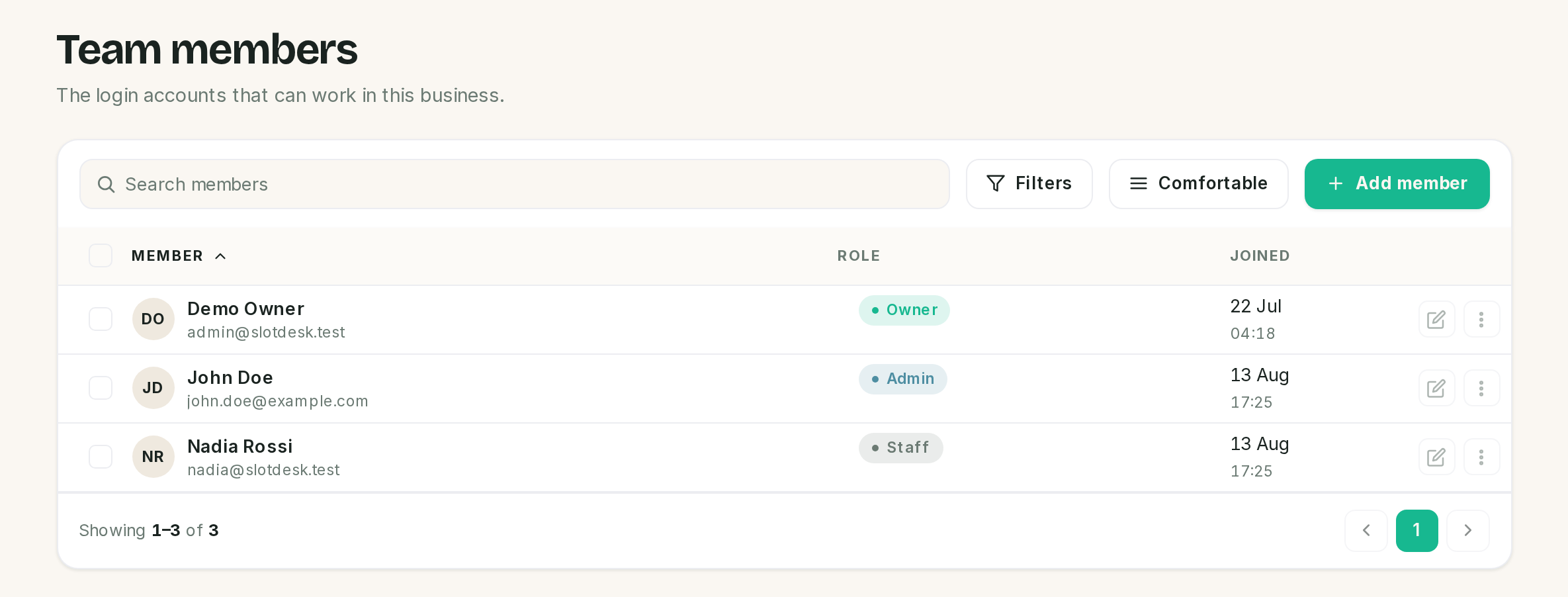 Roles are per business. The same account can be an owner here and a staff member somewhere else.
Add member attaches an account that already exists, by email address. It does not create one. New
accounts are made in /admin, so on a fresh install the order is: create the account there, attach
it here.
Three roles, and the ladder is strict rather than a set of tick boxes:
| Role | Reaches |
|---|---|
| Staff | Dashboard, calendar, appointments, the inbox, saved replies, customers |
| Admin | Everything above, plus the catalog, staff records, the AI and WhatsApp screens, notification templates, payments and reports |
| Owner | Everything above, plus booking rules, reminder settings, payment settings, the cost dashboard and this screen |
Read that as three concentric rings. Anything an Admin can do, an Owner can do.
A business must keep at least one owner. Demoting or removing the last one is refused with a message rather than allowed and regretted. Promote a second owner first.
Removing a member detaches them from this business only. The account itself survives, along with any other business it belongs to.
What the receptionist can see
get_staff returns active staff and the services each one performs, and nothing else. No bio, no
linked account, no working hours.
That is enough for it to handle "can I have Marco on Thursday" and "anyone is fine", which are the two things customers actually say. When a customer asks for someone by name, the name has to match the Name field, so nicknames are worth putting there rather than in the bio.
Deleting a staff member usually fails, on purpose
Appointments hold a reference to the staff member who performed them, and the database refuses to break it. Once a person has a single appointment, past or future, their record cannot be deleted.
Switch them to inactive instead. It is the right action anyway: it stops new bookings immediately and keeps the history that a delete would have taken with it.
In this release the refusal is not handled gracefully. A bulk delete of somebody with appointments ends in an error page rather than a message explaining why, and the Delete button on the edit form does nothing at all. Neither one damages your data.
If something went wrong
A staff member is never offered a slot. Three candidates, in the order to check them: no services assigned, the record is inactive, or their own working hours cover fewer days than you meant.
Everyone works nine to five and nobody set that up. That is the installer's default, Monday to Saturday. It applies to every staff member who has no hours of their own.
Somebody stopped taking bookings the day I edited their hours. Their own hours now replace the business default rather than adding to it. Fill in every day they work.
A service has staff assigned and still shows nothing. Check the staff member is active, then check the hours. Buffers and booking rules come after both.
The AI gives the wrong opening hours. It reads the business default rows, which no screen edits. See above.
A staff member's working hours look empty. They are not. This release does not render the saved times, and availability is using them.
A staff member cannot be deleted. They have appointments. Deactivate instead.
Somebody cannot see the Staff screen. They are on the Staff role. Staff records need Admin.
The last owner cannot be removed or demoted. By design. Promote another owner first.
An account does not appear in the team list.
It was never attached to this business. Add it by email, or create it in /admin first.
Previous: Locations, categories and services Next: Booking rules, the limits every booking has to satisfy.