Templates and the 24-hour window
Meta decides when you are allowed to message someone, and the rule is short: you can say anything you like for 24 hours after a customer messages you, and outside that you can only send a template they approved in advance.
Everything in this chapter follows from that one rule. It is also where the most confusing failure in SlotDesk comes from, which is a reminder that quietly does not go out.
The window
The window is per conversation, not per customer and not per business.
- It opens the moment a customer sends you a message.
- It lasts 24 hours, and every new inbound message resets the clock.
- Inside it, SlotDesk sends normal text. Nothing needs approving.
- Outside it, only an approved template will leave the building.
A customer who messaged you three days ago is outside the window. A customer who is mid-conversation right now is inside it. Nothing you configure changes this; it is Meta's rule for every business on the platform.
What happens when a reminder is due
When a scheduled notification comes due, SlotDesk decides in this order:
| Situation | What is sent |
|---|---|
| The conversation is inside the 24-hour window | Normal text, immediately |
| Outside the window, and the notification has an approved template mapped to it | That template |
| Outside the window, with no approved template mapped | Nothing. The send fails. |
That third row is the one that bites. The appointment is real, the reminder is scheduled, cron fired, the worker ran, and the message still does not arrive, because Meta will not accept it and SlotDesk will not pretend otherwise. It lands in WhatsApp → Failed messages.
A reminder is only reliable if it has an approved template behind it, because by definition a reminder fires long after the customer last wrote to you.
Templates
WhatsApp → Templates lists every template for the business with its language, category and review status.
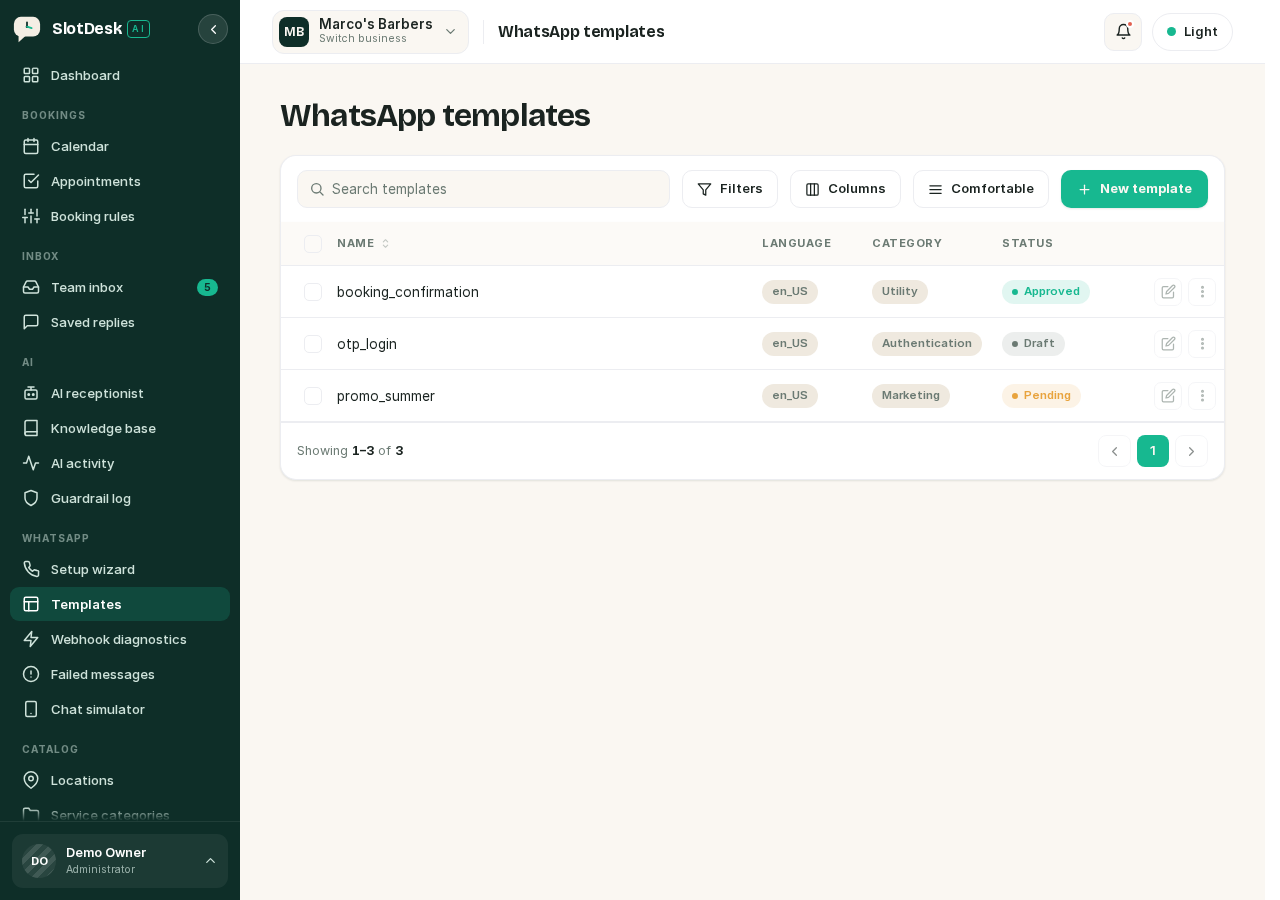 The templates list, with a template in each of the three states.
A template has four fields:
| Field | Rules |
|---|---|
| Name | Lowercase letters, digits and underscores only. booking_confirmation, not "Booking Confirmation" |
| Language | Defaults to en_US. The language is part of a template's identity, so the same name in two languages is two templates |
| Category | Utility, Marketing or Authentication |
| Body | The message text |
Choosing a category honestly
Meta reviews the category as well as the text, and getting it wrong is a common rejection.
| Category | For | Relative cost |
|---|---|---|
| Utility | Something the customer asked for: confirmations, reminders, receipts | Low |
| Authentication | One-time codes | Lowest |
| Marketing | Anything promotional, including "we miss you" and offers | Highest, by a wide margin |
The template form shows an estimated per-message cost for each category, and Marketing typically costs several times Utility. Treat the figures as an estimate for planning, because the real price is Meta's, varies by destination country, and changes.
Replies sent inside the 24-hour window are currently free, and that changes on 2026-10-01, when Meta begins charging for in-window service messages. SlotDesk's cost dashboard already knows that date. If you are budgeting past it, do not assume conversation replies stay free.
Labelling a marketing message as Utility to save money gets it rejected, and repeated attempts affect your account standing.
The five states
| Status | Meaning |
|---|---|
| Draft | Written here, never sent to Meta. Not usable |
| Pending | Submitted, waiting on review. Not usable |
| Approved | Usable. This is the only state that can send |
| Rejected | Meta declined it, with a reason stored against the template |
| Paused | Meta suspended it, usually for poor quality signals. Not usable |
Only Approved sends. Everything else fails at the moment of sending rather than at the moment of saving. Check the state column before you rely on a reminder.
Submitting for review
- Create the template. It starts as Draft.
- Submit it. SlotDesk sends the name, language, category and body to Meta and the status becomes Pending.
- Meta reviews it, usually quickly, and the result arrives as a webhook.
Step 3 is why the previous chapter insisted on the field subscription. Approvals come in on the
message_template_status_update event. If you did not subscribe to that field in Meta, your
templates will sit on Pending forever even after Meta has approved them, because nothing is telling
SlotDesk. See WhatsApp Cloud API.
If a template is rejected, Meta's reason is stored and shown against it. Fix the text and submit again; a resubmitted template clears the old reason and goes back into review as new.
Mapping a template to a notification
A template on its own does nothing. What makes an out-of-window reminder work is the mapping between a notification and the WhatsApp template that should carry it when free-form is not allowed.
That mapping is the difference between the second and third rows of the table at the top of this chapter. A notification with no approved template mapped has no fallback, and outside the window it fails.
The Notifications and reminders chapter covers setting these up.
Opt-out
If a customer replies with exactly stop, unsubscribe or cancel subscription, SlotDesk marks them opted out. From then on the AI receptionist stops replying to them and outbound sends to them fail deliberately.
The match is exact, ignoring capitals and surrounding spaces. "STOP" opts out. "please stop" does not, because it is a sentence rather than the keyword, and treating it as one would opt people out of a normal conversation by accident.
Delivery receipts
Once a message leaves, Meta reports back on it and SlotDesk moves the message through:
pending → sent → delivered → read
or to failed, with the error code Meta returned.
These updates arrive on the same webhook as everything else. If your messages are stuck showing
sent and never advance, the messages are going out fine and the status callbacks are not coming
back, which is a webhook subscription problem rather than a sending problem.
If something went wrong
A reminder never arrived and the appointment was real. Almost certainly outside the window with no approved template mapped. Check Failed messages, then map an approved template to that notification.
A template has been Pending for days.
Check in Meta whether it was actually approved. If it was, you are not subscribed to
message_template_status_update and the result never reached you.
A template was rejected and the reason is not obvious. The most common causes are the category not matching the content, and text that reads as promotional in a Utility template.
Messages send but always show as sent, never delivered. Status callbacks are not arriving. Same subscription as above.
A customer stopped getting messages for no reason. They may have sent an opt-out keyword. It only takes the exact word.
Everything is approved and sending still fails outside the window. Confirm the approved template is mapped to that specific notification. An approved template that is not mapped to anything is never used.
Previous: WhatsApp Cloud API Next: The AI receptionist, choosing a provider and model, and what it costs.