First login and the two panels
SlotDesk has one login and two panels behind it. /admin owns the whole install. /app is one
business. Most people only ever need the second one.
Knowing which is which saves a lot of hunting, because a setting you cannot find is usually not missing. It is in the other panel, or it is behind a role you do not have.
One login, two destinations
Everyone signs in at /login. There is no separate admin login and no second password.
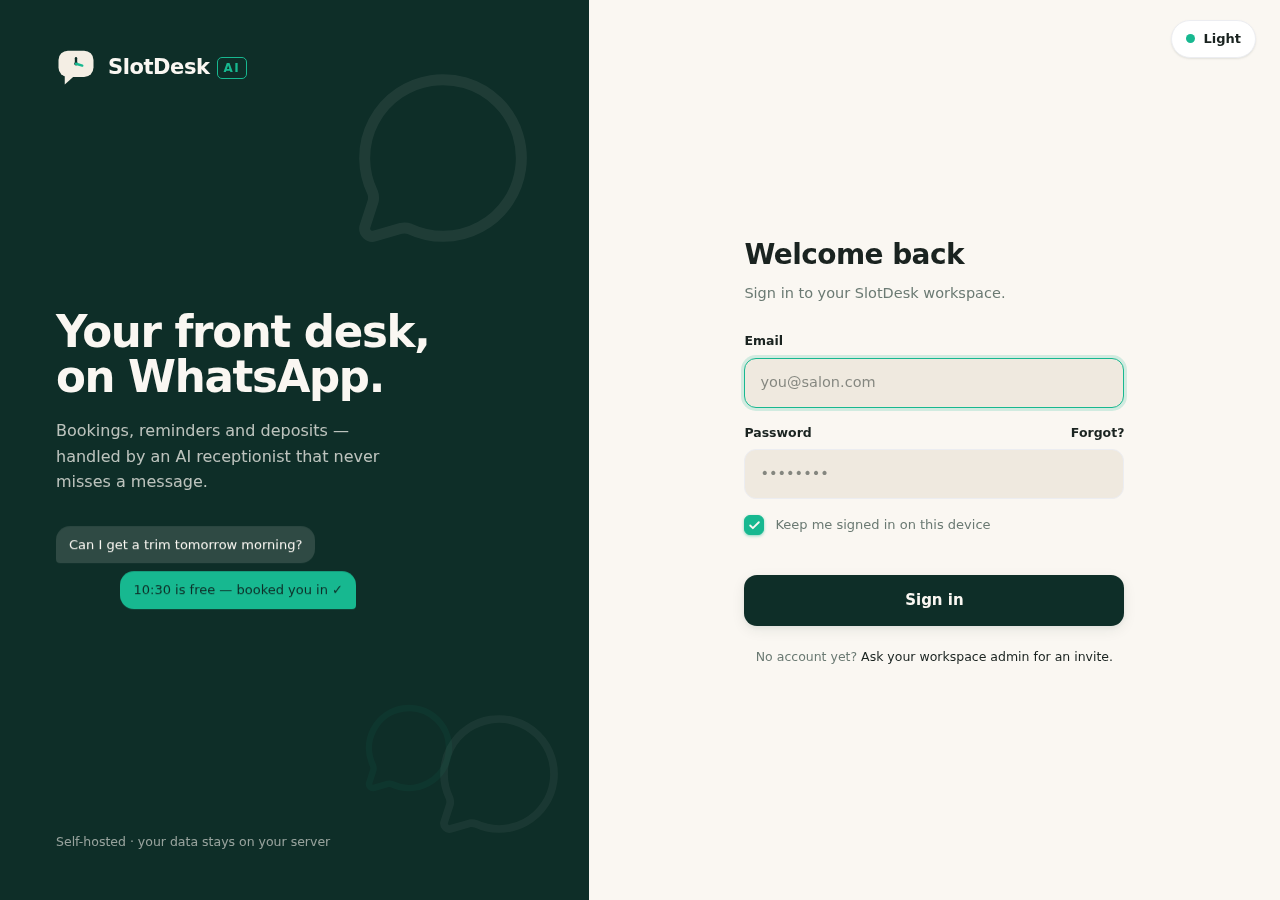 The sign-in screen.
Where you land depends on the account:
- If you belong to a business, you land in that business, at
/app/{slug}. If you belong to more than one, you land in the first. - If you belong to none and you are a super admin, you land on
/admin/dashboard. - If neither is true, you are sent back to the login screen.
Note the order. Being a super admin does not land you in /admin if you are also a member of a
business, and the owner account created during install usually is. If you expected the admin panel
and got a business dashboard, that is why, and the next section is how to cross over.
Forgotten passwords are at /forgot-password. That sends an email, so it depends on mail being
configured. On a fresh install mail defaults to writing to a log file rather than sending, which is
covered in Before you start.
/admin · the install
The super admin panel. It exists once, no matter how many businesses you run, and it is only reachable by an account flagged as a super admin.
| Screen | What it is for |
|---|---|
| Dashboard | Install-wide overview |
| Businesses | Create, edit and list every business on the install |
| Users | Every login account, across all businesses |
| Team | The roster of who is on the install, grouped into super admins, business owners and members |
| System health | Cron, queue, storage, PHP extensions, services, failed jobs |
| Activity log | What changed and who changed it |
| Settings | Install-level configuration |
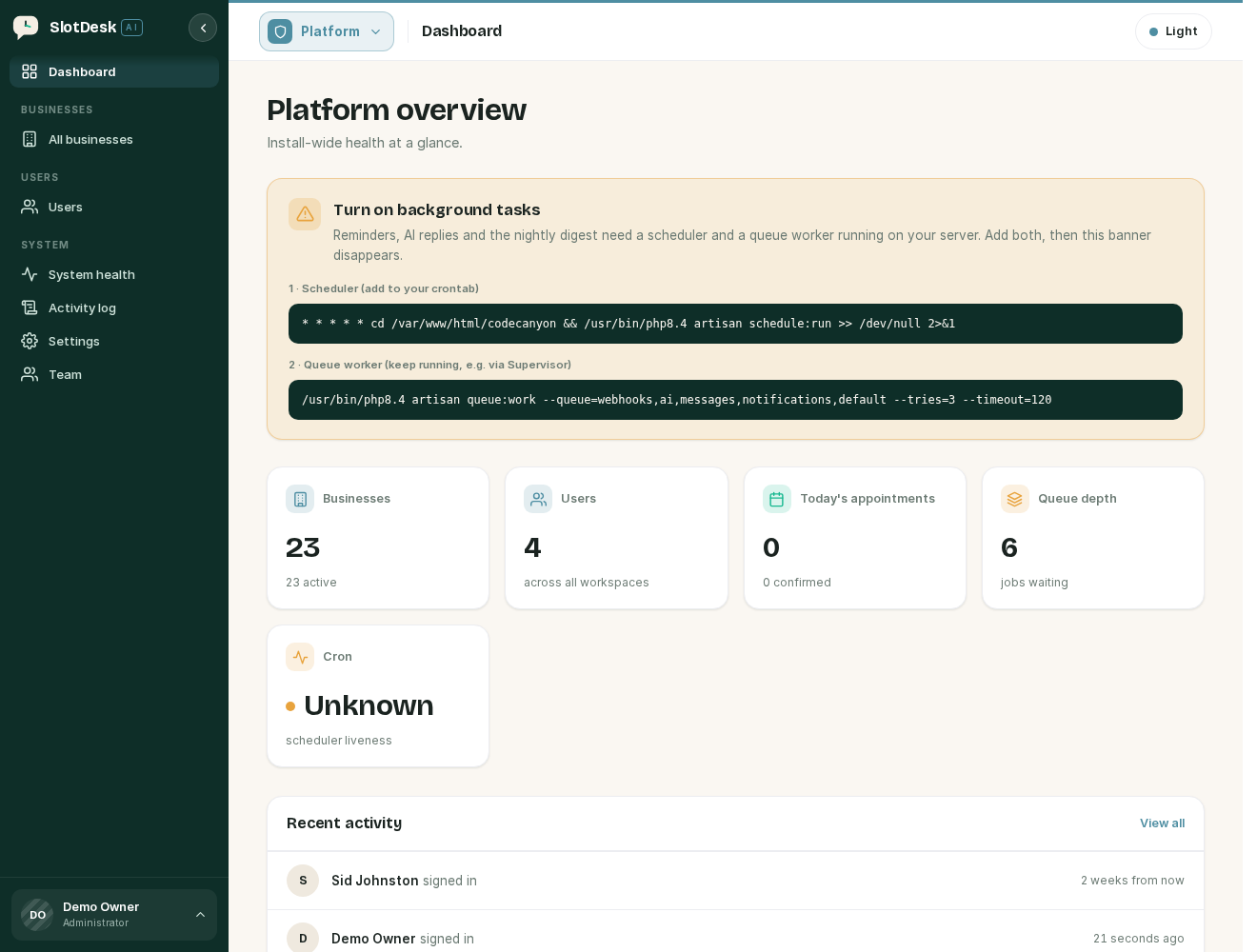 The admin dashboard.
System health is the one to remember. It is where you confirm cron and the queue worker are alive, and it is the first place to look when something stops sending. See Cron and the queue worker.
If you run a single salon, you will use this panel on install day and then rarely again.
/app/{slug} · one business
The panel the actual work happens in. Everything inside it is scoped to one business.
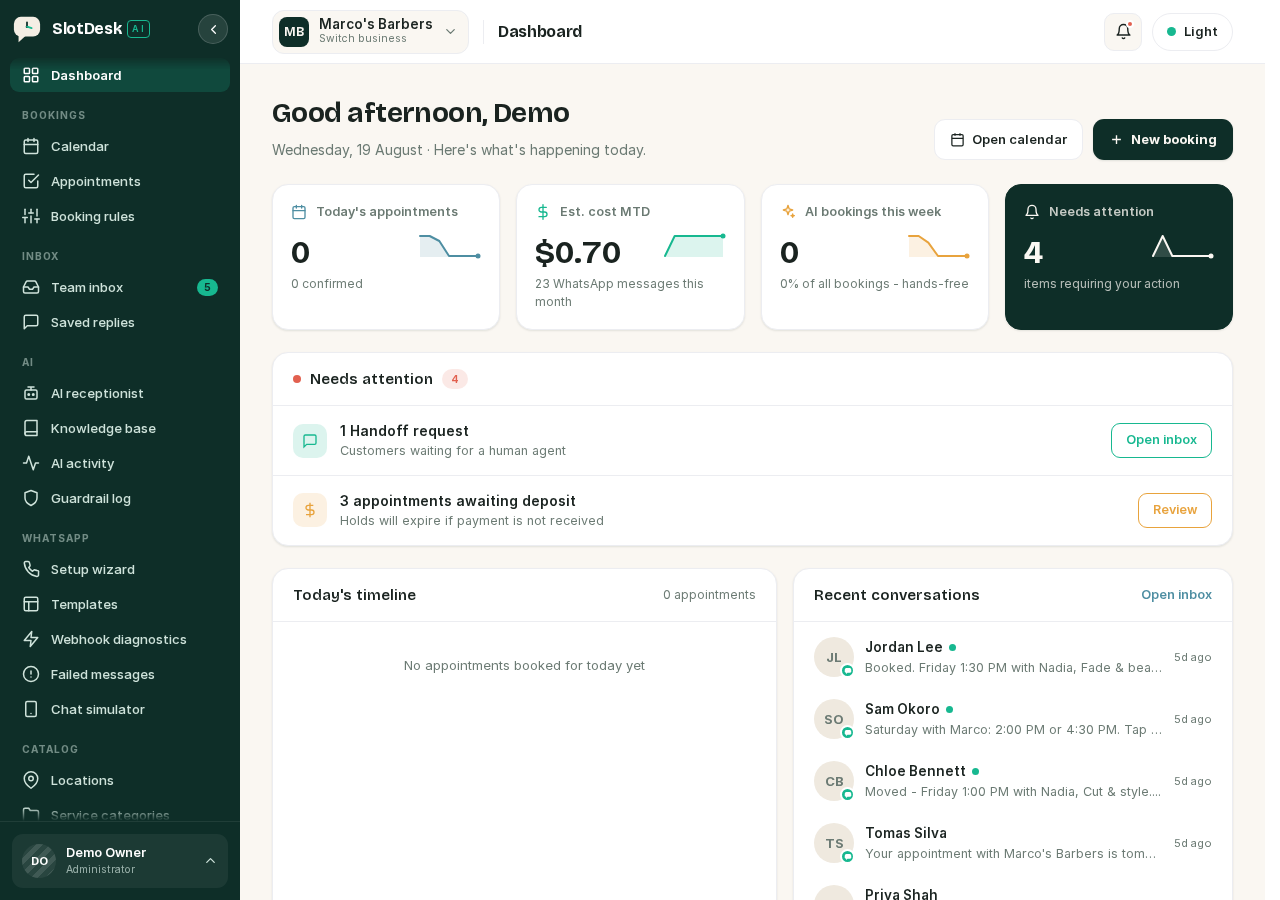 A business dashboard, with the business switcher at the top left.
The slug
{slug} is the business's short name in the URL, so a business called Bella Salon lives at
something like:
https://your-server/app/bella-salon
Every screen for that business sits under that path. It is worth bookmarking the dashboard, since it is the address your staff will use every day.
A slug you are not a member of returns 404, and so does a slug that does not exist. That is deliberate and it is covered below.
Moving between them
You do not need to type URLs. Both directions have a control in the topbar.
Switching business, in /app: the chip at the top left shows the current business with
Switch business under it. It only opens as a menu if you belong to more than one; with a single
business it is a static label, because there is nowhere to switch to. Past five businesses the menu
gains a filter box.
From a business to the install, if you are a super admin: Admin console, marked with a shield. Where it sits depends on how many businesses you belong to:
| You belong to | Admin console is |
|---|---|
| More than one business | At the foot of the business switcher menu |
| Exactly one business | In your own account menu, bottom left |
The split exists because a single-business account has no switcher menu for the link to live in.
From the install back to a business: the Platform badge at the top left of /admin opens a
menu headed Return to a business, listing every business you belong to.
The rest of the topbar
At the right-hand end, in both panels:
| Control | What it does |
|---|---|
| Bell | Jumps to the team inbox. A coral dot means at least one conversation is open. /app only |
| Light / Dark | Switches the colour scheme |
Light and dark are per browser, not per account. The choice is remembered in that browser's local storage, so it follows the device rather than the login: switching to dark on your laptop does not darken the same account on the front-desk machine, and signing out does not reset it. New browsers start on light.
The role ladder
Roles are per business, not per install. The same person can be an Owner of one business and Staff in another.
There are three, and they stack:
Owner › Admin › Staff
Each level can reach everything the level below it can, plus its own.
| Available from | Screens |
|---|---|
| Staff | Dashboard, Calendar, Inbox, Appointments, Customers, Saved replies |
| Admin | Locations, Service categories, Services, Staff, Notification templates, WhatsApp templates, WhatsApp setup wizard, AI agent settings, AI activity, Guardrail log, Knowledge items, Webhook diagnostics, Failed messages, Chat simulator, Reports, Payments |
| Owner | Booking rules, Reminder settings, Payment settings, Cost dashboard, Team |
The split follows what each role is for. Staff get the day-to-day: the calendar, the inbox, the customers. Admin gets the configuration: what you sell, who performs it, how the AI behaves, and the diagnostics. Owner gets the money and the keys: payment settings, the cost dashboard, and the ability to add and remove logins.
A super admin in a business sees everything
A super admin can open any business's panel, whether or not they are a member, and the role gates do not apply to them. That is by design, and it explains why someone can see a screen you thought was restricted.
Why a page 404s instead of saying "no access"
Every gate in both panels returns 404, not 403:
/adminwhen you are not a super admin/app/{slug}for a business you do not belong to/app/{slug}for a slug that does not exist- An Admin-only or Owner-only screen when you are Staff
This is deliberate. A "forbidden" page confirms that the thing exists, which tells anyone poking at URLs what your install contains. A 404 says nothing at all.
The practical consequence for you: if a colleague reports that a page is missing, check their role before you check for a bug. The two look identical from their side.
Staff are not logins
This one catches people out, and it comes up the moment you add your first person.
| In the panel | What it is |
|---|---|
Staff (/app/{slug}/staff) |
The people appointments are booked with. They have working hours and services they perform. They do not sign in. |
Team (/app/{slug}/team) |
The login accounts that can work in this business, each with a role. |
A stylist who takes bookings but never opens the app is a staff member only. A receptionist who works the inbox but is never booked is a team member only. Someone who does both needs a row in each, and they are not linked automatically.
Adding someone to Team does not put them on the calendar. Adding them to Staff does not give them a password. The Staff and team members chapter covers this in full.
There are two Team screens and they are different things. /admin/team is everyone on the whole
install. /app/{slug}/team is the logins for one business.
If something went wrong
You log in and land somewhere unexpected.
See the order at the top. Membership of a business wins over being a super admin. Use Admin
console to cross over, or go to /admin directly.
You cannot find the Admin console link. It moves depending on how many businesses you belong to. See the table in "Moving between them". It is also only shown to super admins.
/admin returns 404 for an account you believe is a super admin.
It is not flagged as one. Check it under Users in /admin, from an account that can already get in.
The owner account created during install is the original one.
A team member says a menu item is missing. Almost always their role. Owner-only screens are invisible to Admin, and Admin screens are invisible to Staff. Check them under Team in that business.
You cannot remember the slug.
Open /admin → Businesses. It is listed there, and the dashboard link goes straight in.
The password reset email never arrives.
Mail is not configured. On a fresh install it writes to a log file instead of sending. Until SMTP is
set up, reset passwords from /admin → Users instead.
Previous: Cron and the queue worker Next: WhatsApp Cloud API, the Meta app, the tokens, and the webhook that makes messages arrive.