The team inbox
Where a person takes over from the receptionist. Three columns: every WhatsApp thread on the left, the conversation in the middle, and who you are talking to on the right.
Inbox → Team inbox. Everyone with access to the business can open it and can send from it.
The AI is in every thread with you
The inbox and the receptionist work the same conversations, so the screen is built around one question: who is answering this customer right now. Know the answer before you type anything.
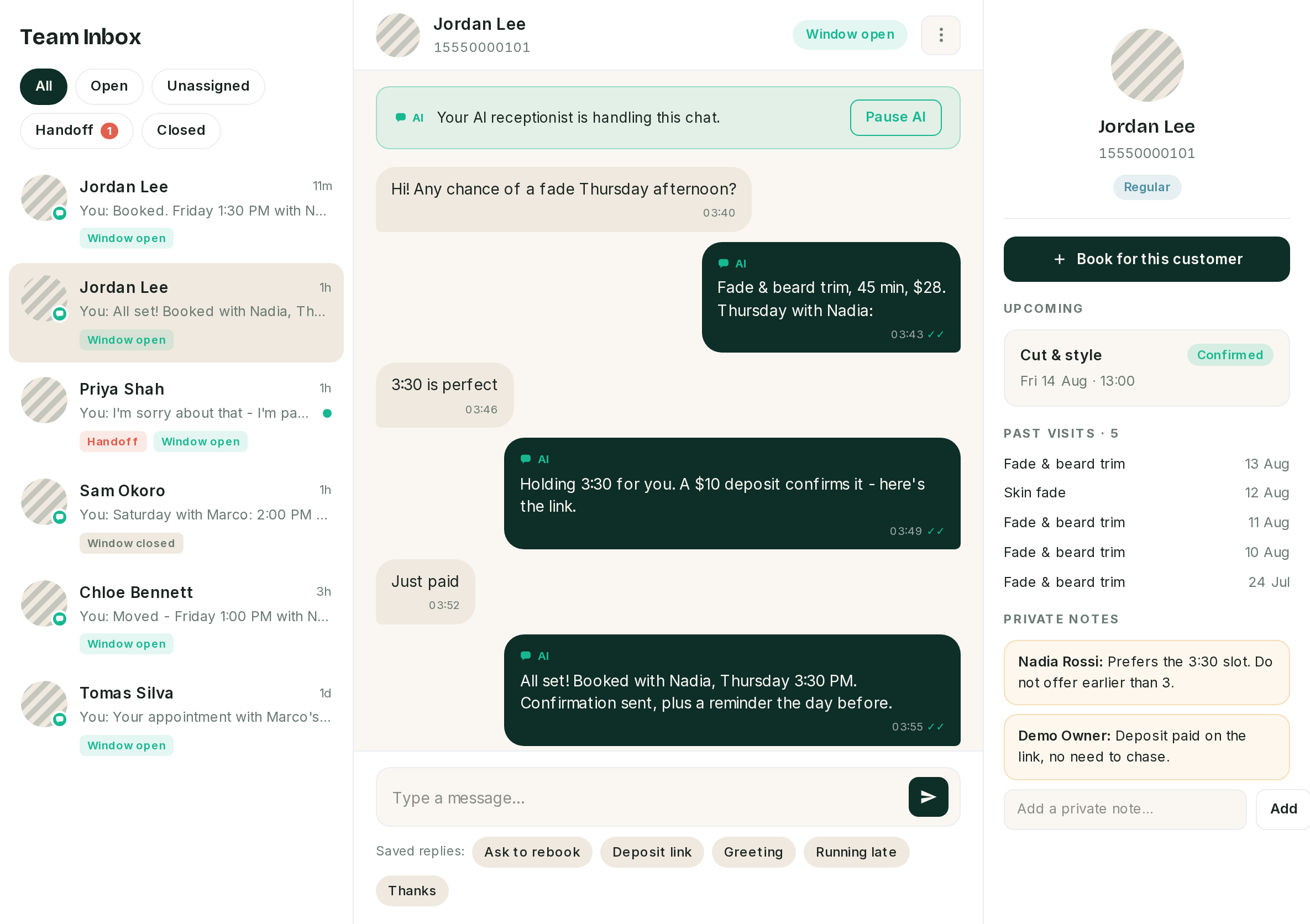 The green bar means the receptionist is still answering this one.
| Banner at the top of the thread | What it means |
|---|---|
| Green, "Your AI receptionist is handling this chat" | The AI will answer the next inbound message |
| Coral, "asked for a human" | Handoff. The AI has stopped on this thread |
| No banner | The AI is paused here, and nothing is escalated |
Anything you send takes the thread over. A free-form reply, an approved template and approving an AI draft all do the same three things before the message leaves: pause the AI on this conversation, assign it to you if nobody had it, and move it to Assigned. That is deliberate, and it is what stops you and the receptionist answering the same customer at once.
⚠️ The AI does not come back on its own. Once you have replied, that conversation stays yours until somebody picks Resume AI from the actions menu, top right of the thread. There is no timeout and no automatic return.
The conversation list
Threads are ordered by most recent activity, and the list holds the 100 most recently active conversations. There is no search and no second page, so an older thread is reached through the filters rather than by scrolling to it.
| Filter | Shows |
|---|---|
| All | Everything, closed threads included |
| Open | Status Open only |
| Unassigned | Anything not closed with nobody assigned |
| Handoff | Threads the AI escalated |
| Closed | Threads somebody closed |
⚠️ Open is a status, not "still needs an answer". The moment you reply, the thread becomes Assigned and leaves the Open filter. A team working the Open filter alone will watch conversations disappear as soon as anyone touches them. Unassigned is the closer match for "nobody has this yet".
Each row carries the customer name, or the phone number when there is no name, the age of the last message, a one-line preview, and a Window open or Window closed pill. A green dot on the avatar means the receptionist is still live on that thread. A coral Handoff chip means it is waiting for a person.
Two things about the row that are easy to misread:
- The preview says "You:" for the AI as well. Outbound is outbound, and the list does not separate what your team wrote from what the receptionist wrote. Open the thread to tell them apart; the bubbles are labelled.
- The list and the thread refresh every ten seconds. Nothing is pushed. There is no sound, no unread count and no desktop notification.
The number next to Inbox is not the handoff count
The badge in the sidebar counts conversations with status Open or Assigned. A handoff has status Handoff, so it is not in that number and the badge can read zero while somebody is waiting for a human.
The two places that do count handoffs are the Handoff filter chip in this screen, which carries its own coral count, and Needs attention on the Dashboard.
The 24-hour window decides what the composer is
The same Meta rule that governs reminders governs typing here. See Templates and the 24-hour window.
Window open, meaning the customer has messaged you in the last 24 hours: a normal message box, with your saved replies as chips underneath it.
Window closed: the box is replaced by a template picker.
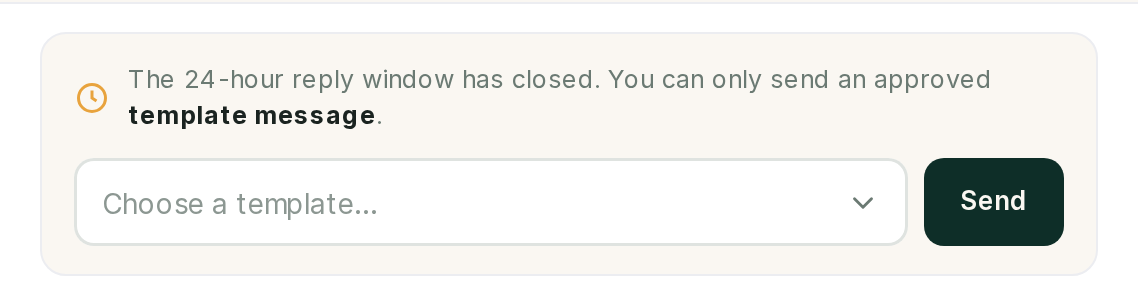 The saved-reply chips are attached to the message box, so they go with it.
| Window open | Window closed | |
|---|---|---|
| Free text | Yes | No |
| Saved replies | Yes | Not shown |
| Approved template | No | Yes, the only option |
| AI draft | Approve and send | Approve is disabled |
The window reopens the moment the customer sends anything, and runs for 24 hours from that message. If the picker is empty, there is nothing approved to send and the screen says so; approve one under WhatsApp → Templates first.
The two are asymmetric: a template send to a customer who has opted out is refused and tells you why, while a free-form reply inside the window is not checked against opt-out at all. Opt-out protects the customer from automated sending, not from a person answering a message they just sent you.
Handoff
A thread lands in Handoff when the receptionist escalates it, either because the customer said one of your handoff keywords or because the AI decided it could not help. Both are recorded in the Guardrail log. See Guardrails and the knowledge base.
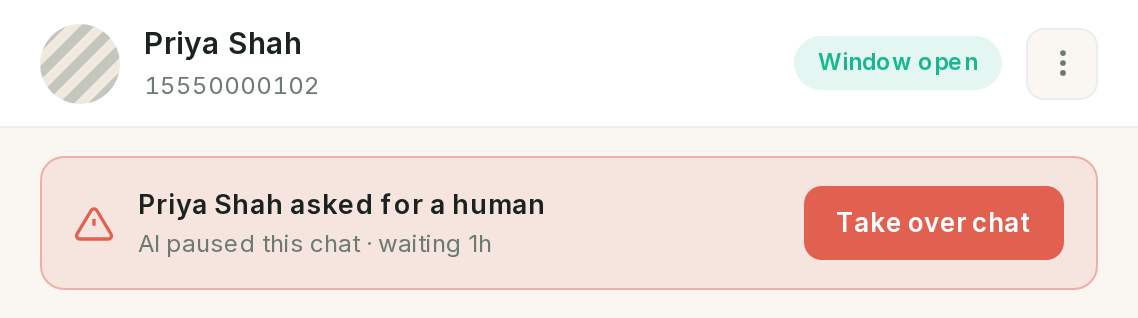 Everyone with access to the business is notified when this happens.
Handoff does two things at once: it sets the status to Handoff and it pauses the AI on that conversation. Take over chat assigns the thread to you and moves it to Assigned, which is the same thing the actions menu's Assign to me does.
⚠️ Resume AI on its own will not restart the receptionist on a handoff thread. The AI skips any conversation whose status is still Handoff, whatever the pause flag says. To hand a thread back: take it over first, or close and reopen it, then Resume AI. Doing it in the other order looks like it worked and changes nothing.
Drafts waiting for your approval
A draft is a reply the receptionist wrote and did not send.
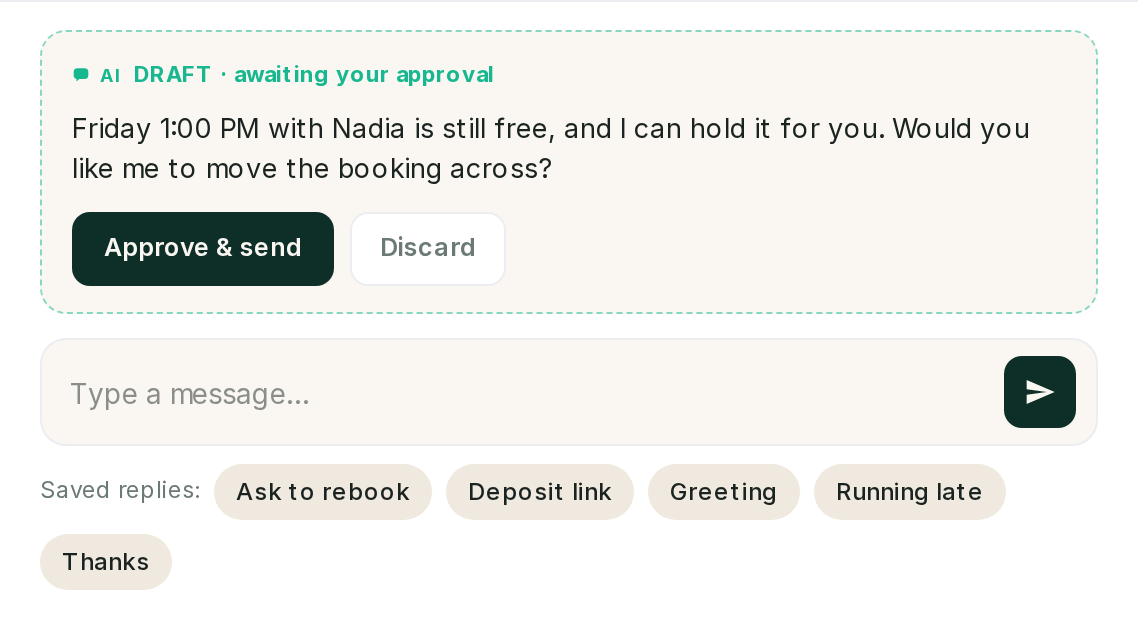 A draft is stashed on the conversation, so it survives you navigating away.
There are two ways one appears, and only the first is a setting:
- Draft only mode, on the AI receptionist screen. Every reply is stashed for review.
- Any reply generated after the window shut, in any mode. The AI cannot send free-form text outside the window either, so it saves the reply instead of losing it.
Approve and send sends the text as it stands, marked as an AI message, and takes the thread over like any other send. Discard deletes it. There is no edit: to change the wording, discard it and type your own.
⚠️ A draft written after the window shut cannot be approved. Approve and send is disabled while the window is closed, and a draft cannot be converted into a template. Send an approved template instead, and discard the draft.
Only one draft is kept per conversation. A newer one replaces whatever was there.
Saved replies
Inbox → Saved replies. A title and a message body, shared by everyone in the business, sorted by title.
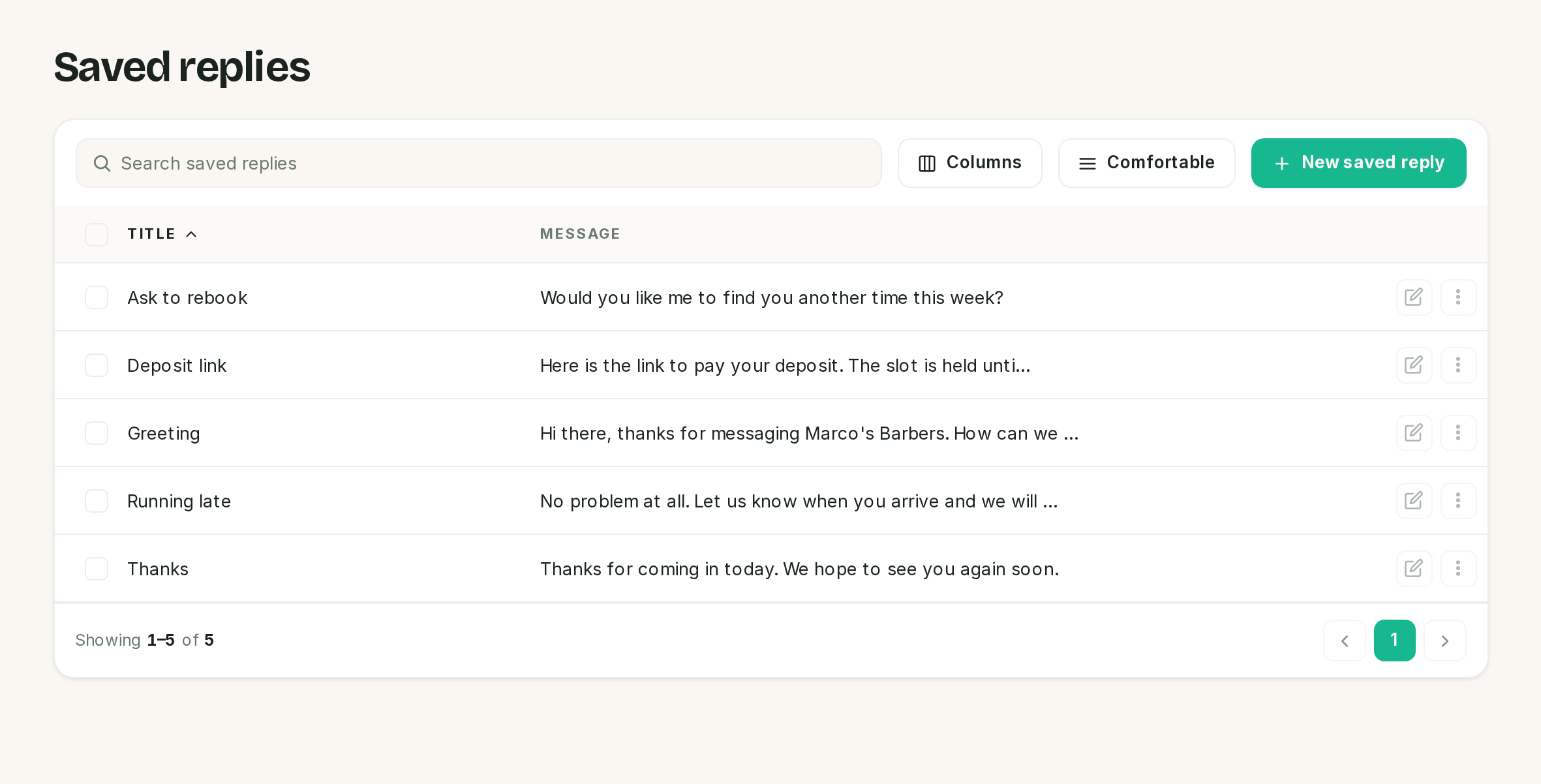 Keep titles short. They are chips in a narrow composer, not headings.
Clicking a chip puts the text in the message box and stops there. Nothing is sent until you send it, and you can edit it first. It also replaces whatever you had already typed.
⚠️ Saved replies do not substitute placeholders. {{customer_name}} in a saved reply is sent to
the customer as those exact characters. Placeholders belong to notification templates, which are a
different screen and a different mechanism. Write saved replies as finished sentences.
Deleting one removes it from every operator's composer immediately.
The customer rail
The right column is the customer, not the conversation: name, number, any tags, the next appointment, the last five visits, and your team's private notes.
Private notes are internal. They are never sent, the customer cannot see them, and they are listed newest first. There is no edit and no delete once a note is added.
Book for this customer opens the manual booking form. It runs the same clash check as every other route into the diary and schedules the same confirmation and reminders, so booking from the rail does not leave the customer in the dark. See Booking rules and Notifications and reminders.
Reading the ticks
| Mark | Means |
|---|---|
○ |
Queued, not yet handed to WhatsApp |
✓ |
Sent |
✓✓ |
Delivered |
✓✓ in green |
Read |
⚠ in coral |
Failed |
⚠️ A failed message cannot be retried from the inbox. The tick is the whole story here. Retrying lives on WhatsApp → Failed messages.
Anything that is not text shows as its type, in italics, with no preview. A photo a customer sends appears as the word Image. Interactive replies the AI sent show their buttons as small chips under the message.
Closing and reopening
Close parks a finished conversation, and it stays visible under the Closed filter. Reopen brings it back to Open. Neither tells the customer anything, and closing does not stop the customer writing again. A new inbound message lands in the same thread.
If something went wrong
The customer got two answers, one from us and one from the AI. The thread was not taken over, which normally means the reply was sent from somewhere other than this screen. Anything sent from the inbox pauses the AI first.
The AI stopped answering a customer and will not start again. Check the status. If it is Handoff, Resume AI alone does nothing: take the thread over, or close and reopen it, then resume.
The sidebar badge says zero but somebody is waiting. Handoffs are not in that count. Use the Handoff filter, or Needs attention on the Dashboard.
A conversation vanished from the list. The Open filter drops a thread as soon as it is assigned. Try All or Unassigned.
I cannot type a message. The 24-hour window has closed. Send an approved template, or wait for the customer to write.
The saved reply chips are gone. Same cause. They are attached to the message box, which is not on screen while the window is closed.
A customer sent a photo and I only see the word Image. Media is recorded but not rendered in this release.
A message shows a warning triangle. It failed. Retry it from WhatsApp → Failed messages.
A saved reply sent {{customer_name}} to a customer.
Saved replies are literal text. Remove the placeholder.
The thread is quiet and there is no banner at all. The AI is paused on that conversation and nothing has escalated. That is a normal state after anybody replies.
Previous: Calendar and appointments Next: Customers and reports, customer records and what Insights shows you.